Import JSON Files
VisiGrid reads JSON through an import recipe: a .json export from an API or a download, or a JSON Lines file (.jsonl, .ndjson) with one record on each line. Each record becomes a row of a Table, and Refresh reads the next export the same way. JSON sources start in VisiGrid 0.51.0.
Try it with a sample
Section titled “Try it with a sample”Download the sample export and its recipe into the same folder (or right-click a link and choose Save Link As…):
shop-orders.json: eight orders from a fictional shop, as an e-commerce API might return them. The orders sit under anorderskey, next to apageobject and a smallerrefundslist. Each order has a nestedcustomer(one has no address), anidtoo large for a spreadsheet number, anulldiscount code,true/falseflags and a list ofitems.shop-orders.recipe.toml: reads theorders, makescreated_ata date, and keeps the paid orders.
Open shop-orders.recipe.toml with Ctrl+O. VisiGrid asks once before reading the file, then loads the Table:

- Nested objects became dotted columns:
customer.name,customer.address.city. Columns come in the order they first appear in the file. - The order with no address (LL-1044) is empty in the two address columns.
idis text: these IDs are larger than 9,007,199,254,740,992, so as numbers their last digits would change. VisiGrid keeps the column as text with every digit.totalis a number column, because every value in it is a JSON number.giftshowsTRUE/FALSE, thenulldiscount codes are empty, and eachitemslist is kept as its JSON text in one cell.- The two orders that aren’t paid were removed by the recipe’s filter step.
Make a recipe from your own export
Section titled “Make a recipe from your own export”- Data → New Import Recipe…, and choose your
.json,.jsonlor.ndjsonfile. From 0.52.0, File → Open on the file does the same. - The builder opens. On the left, Records at shows where the records are. VisiGrid finds them itself: the array at the top of the file, or else the largest array of records inside it. The recipe saves that path, so next month’s export reads the same records even if another array grows larger. Press
Enteron Records at to choose a different array. - Add steps as for any recipe. Dates in JSON are text, so a Set types step (
date:ymdfor2026-09-01) makes them dates. Numbers sent as strings, like"10.50", need Set types too. From 0.52.0 you can click the type under a column in the preview (Text ›) to change it: the builder adds the Set types step for you. Right-click goes back a type. Scroll the preview sideways (Shift+wheel with a mouse) to reach columns past its edge. - Save and load into Table (
Ctrl+Enter).
This is the sample recipe in the builder. Records at is orders, one of the 2 arrays of records in the file, and the preview shows the result after the filter step:
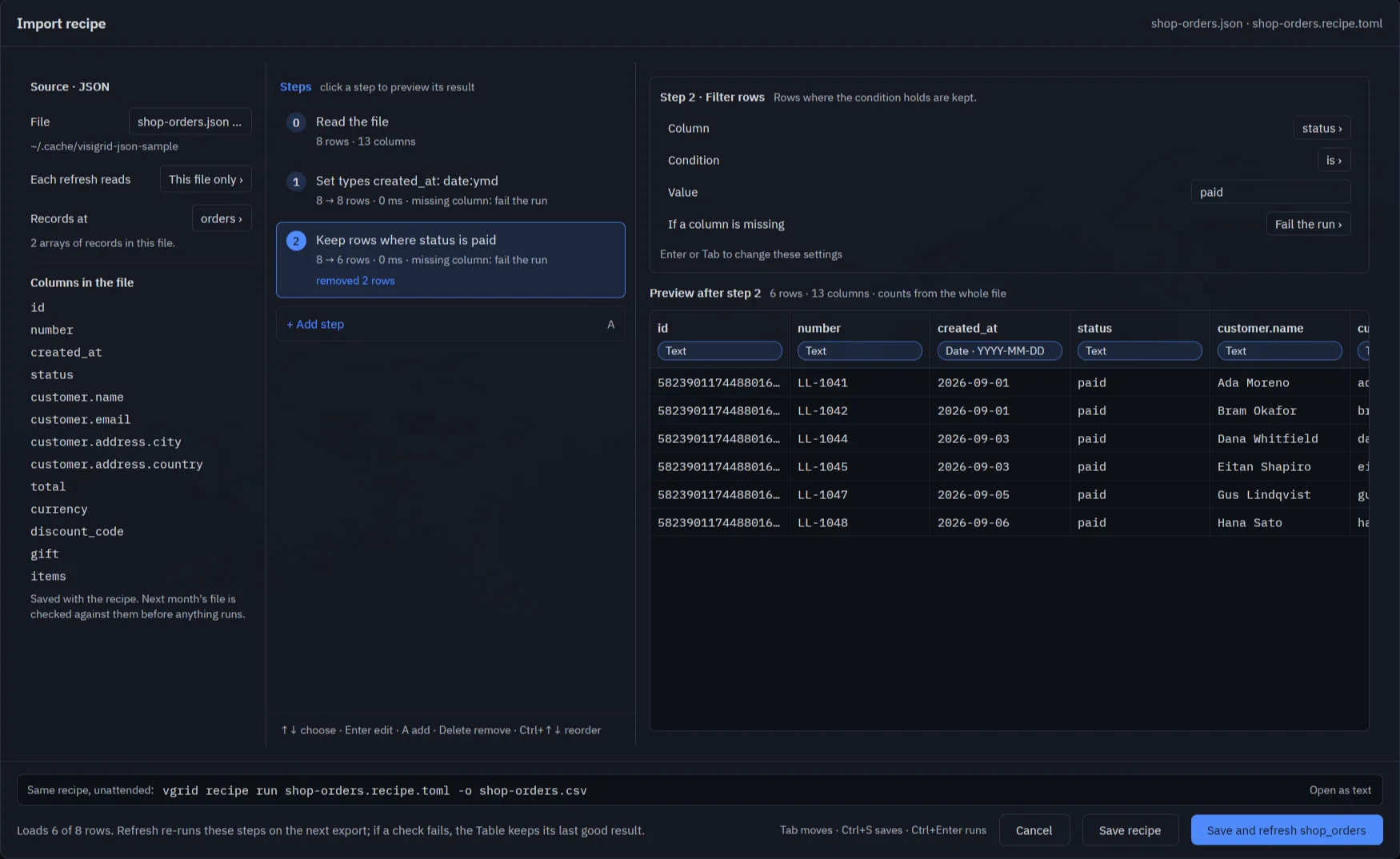
The sample recipe file is short:
version = 1
[source]kind = "json"path = "shop-orders.json"records = "orders"
[[step]]op = "types"columns = { created_at = "date:ymd" }
[[step]]op = "filter"column = "status"is = "="value = "paid"
Refresh next month
Section titled “Refresh next month”When the next export arrives, replace the file and click Refresh (Alt+F5). To pick up a new file name each month, set Each refresh reads to Newest match. Set it to All matching files to append every export in a folder, with a Source file column. See Refresh next month.
The same recipe runs without the app, for a scheduled job:
vgrid recipe run shop-orders.recipe.toml -o shop-orders.csv./shop-orders.json (5ffb295b2671c694): 8 source rows -> 6 rows x 13 columns, ok 1. Set types created_at: date:ymd [8 -> 8 rows, 0 ms] 2. Keep rows where status is paid [8 -> 6 rows, 0 ms]: removed 2 rowsDetails
Section titled “Details”How values come through, repeated keys, JSON Lines, and memory for large files are covered in JSON files in the import recipe guide.